Technology
Google Maps Voice Settings: Can You Change the Navigation Voice? Here’s What Users Should Know
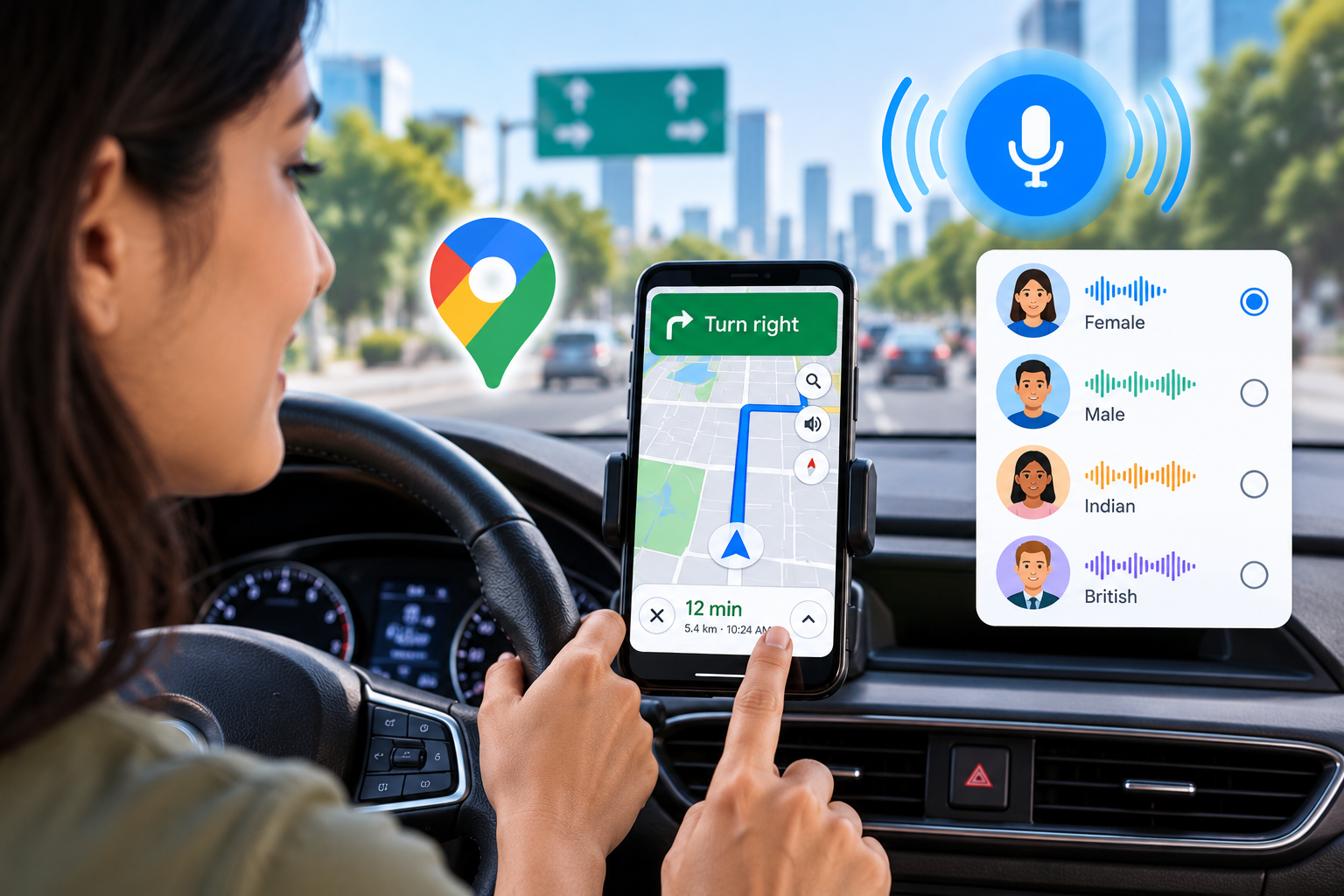
Google Maps has become much more than a simple app for finding directions. For millions of users, it is a regular travel companion that provides turn-by-turn guidance, traffic information, estimated arrival times and route updates while driving or walking.
One of the most noticeable parts of the navigation experience is the voice that tells users when to turn, which road to take and how far they are from their destination.
Because people hear this voice repeatedly during a journey, many users wonder whether they can change it according to their personal preference. Some may want a different language, while others may hope to use a celebrity voice, a friend's voice or even their own recorded voice.
The answer depends on what type of change you are trying to make.
Can You Completely Change the Google Maps Navigation Voice?
Google Maps does not normally provide an official feature that allows users to select any custom voice they want.
This means you cannot simply open the app settings and replace the navigation voice with a celebrity, friend or personally recorded voice.
However, Google Maps may provide options related to language and voice selection depending on your device, operating system, region and the version of the app being used.
So, while some changes are possible, the level of customisation is limited.
How to Change Navigation Language on Android
Android users may be able to change the language used for navigation instructions through Google Maps settings.
To check the available options, open Google Maps and tap your profile picture in the top-right corner.
Next, go to Settings and look for Navigation settings or a similar option.
Depending on the device and app version, you may find a Voice selection option. From there, you can choose from the languages or voices made available by Google.
It is important to note that every language may not provide the same voice choices or navigation features.
Availability can vary from one phone or region to another.
Can You Record Your Own Voice for Google Maps?
Many users are interested in hearing navigation instructions in their own voice or the voice of someone they know.
Google Maps, however, does not normally include an official standard feature that allows a user to record personal navigation instructions and use them throughout the app.
Similarly, there is no regular official option for importing someone's recorded voice and setting it as the default Google Maps navigation voice.
Therefore, users should be careful when they come across websites or apps claiming that they can unlock unlimited custom voices.
Be Careful With Third-Party Voice Apps
Some third-party applications and unofficial methods may claim to change the Google Maps voice beyond the options offered by Google.
Such tools should be approached carefully.
An unknown app may request access to your microphone, storage or other sensitive permissions.
Giving unnecessary permissions to an untrusted application can create privacy and security risks.
Before installing any application that promises navigation customisation, users should check the developer, permissions, ratings and privacy practices.
For most people, using the built-in Google Maps options is the safer choice.
What If Google Maps Navigation Has No Sound?
Sometimes users think there is a problem with the selected voice when the actual issue is simply that navigation sound has been muted.
If you cannot hear directions, begin navigation and check the speaker icon visible on the screen.
If navigation audio is muted, turn the sound back on.
You should also check your phone's media volume. Google Maps navigation instructions are generally played through the device's media audio settings.
Increasing the ringtone volume may not solve the problem if the media volume itself is low.
Check Bluetooth and Car Audio Settings
Another common issue occurs when a smartphone is connected to a car through Bluetooth.
In such cases, Google Maps may be sending navigation audio to the vehicle's sound system rather than the phone speaker.
If you cannot hear directions, check whether Bluetooth is connected correctly and whether the car's audio volume is high enough.
It is also useful to confirm that the correct audio output is selected.
Sometimes disconnecting and reconnecting Bluetooth can help if navigation audio is being sent to the wrong device.
Why Voice Availability Can Differ Between Phones
Not every Google Maps user sees exactly the same voice or language options.
Features may vary depending on the phone model, operating system, region and Google Maps version.
Google can also modify the available settings through app updates.
Therefore, one user may see a particular voice-selection option while another person using a different device may see fewer choices.
This does not necessarily mean that something is wrong with the app.
Can You Use a Celebrity Voice in Google Maps?
Under the normal Google Maps navigation settings described in the source, users cannot simply select any celebrity voice of their choice.
The same limitation applies to a friend's voice or another custom recording.
If Google officially introduces special voices in a particular market or version in the future, availability would depend on the features provided by the company.
Users should therefore rely on options visible inside the official Google Maps app rather than unofficial claims circulating online.
What Is the Final Answer?
Google Maps does allow some degree of navigation voice customisation, mainly through available language or voice-selection settings.
However, it does not normally allow users to freely upload, record or choose any custom voice for turn-by-turn directions.
In simple terms, you may be able to change the language or select from the options provided by Google, but you cannot officially replace the navigation voice with your own recording or any person's voice you choose.
If navigation audio is not working, checking the speaker icon, media volume and Bluetooth output may solve the problem without changing any voice setting.
For users who want to customise Google Maps, the safest approach is to use the options built directly into the app and avoid giving sensitive permissions to unknown third-party applications.