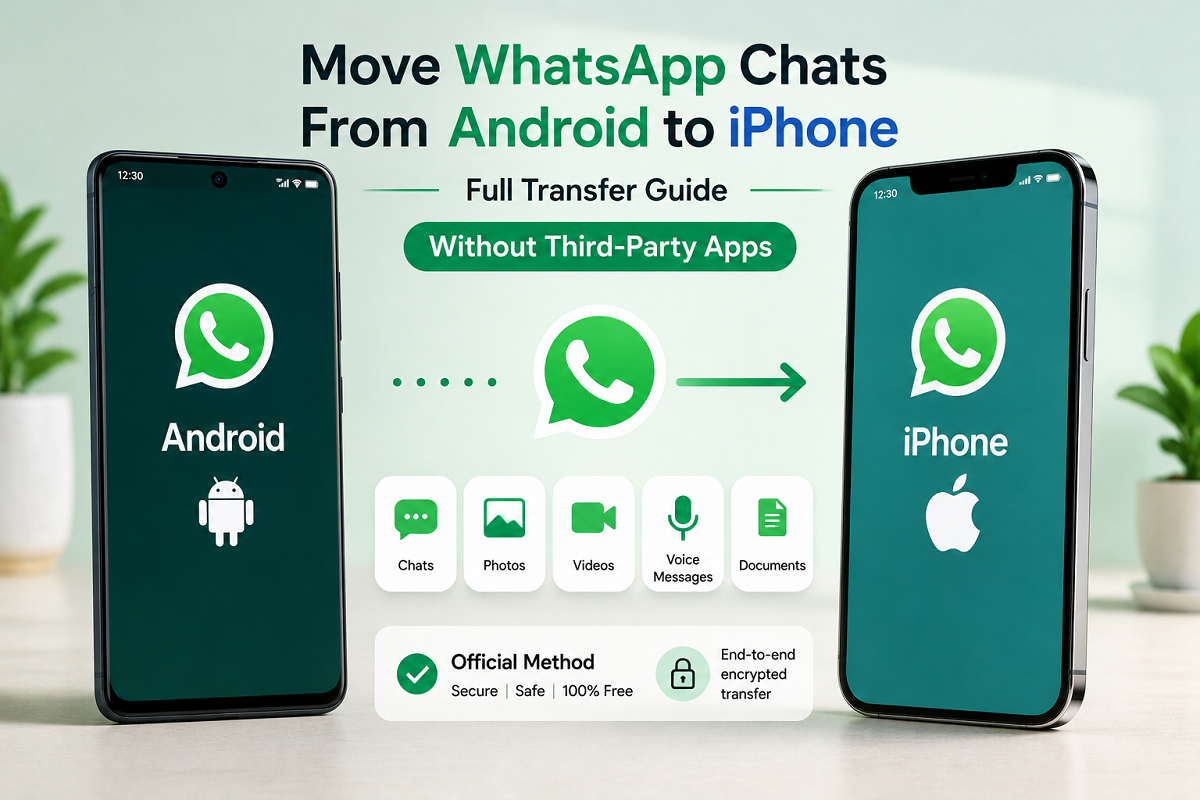
WhatsApp Android to iPhone Transfer: Moving from an Android phone to an iPhone no longer means leaving years of WhatsApp chats behind. WhatsApp supports a direct cross-platform transfer process that allows eligible users to move conversations and supported media from Android to iPhone without depending on unofficial third-party apps.
The transfer works directly between the two devices over a local connection, rather than requiring users to restore an Android Google Drive backup on an iPhone. Since Android and iPhone use different cloud backup systems, this built-in transfer method is the more practical route when switching platforms.
There are, however, some important requirements. Both phones should have the latest available version of WhatsApp, the same phone number must be used during migration, and the iPhone must have enough free storage for the incoming data.
Here is a detailed guide to transferring WhatsApp chats from Android to iPhone.
How Does WhatsApp Chat Transfer Between Android and iPhone Work?
WhatsApp's cross-platform migration tool moves eligible chat data directly from the old Android handset to the new iPhone.
This is different from an ordinary cloud backup. Android users generally associate WhatsApp backups with Google Drive, while iPhone users rely on iCloud. A Google Drive WhatsApp backup cannot simply be restored as an iCloud backup.
The direct transfer method avoids that problem by moving supported data from one device to another during the migration process.
This means users do not need to upload their entire Android chat backup to another cloud service simply to move to iOS.
What Can Be Transferred?
The process can move much of the information people care about most when changing phones.
Supported data can include:
- Individual chats
- Group conversations
- Photos
- Videos
- Voice messages
- Other supported WhatsApp media
The exact content transferred can depend on the current WhatsApp implementation and account type.
Certain types of information may not migrate, so users should not assume that absolutely every element of the old account will appear on the new phone.
Some WhatsApp Data May Not Move
Cross-platform migration has limitations.
According to the described transfer process, some content such as certain payment-related messages, status information and unsupported account data may not transfer.
WhatsApp Business users should also check the current requirements before beginning, as business-account migration rules can differ from those for standard WhatsApp accounts.
Another important limitation is that old and new chat histories generally cannot be merged into one combined history.
If your new iPhone already contains WhatsApp conversations, do not assume that transferring an older Android history will simply add those chats to the existing ones.
Use the Same Phone Number
The phone number is one of the most important requirements.
You need to verify WhatsApp on the iPhone using the same number that was being used on the Android phone during the transfer.
If you want to move to a different mobile number, change the WhatsApp number through the supported account process before starting the migration.
Attempting to transfer to a different number without first changing the account details can cause the process to fail.
What You Should Check Before Starting
Preparing both devices properly can reduce the chance of interruptions.
Make sure:
- WhatsApp is updated on both phones.
- Both phones have sufficient battery.
- The same phone number is available for verification.
- Wi-Fi and other required connectivity are working.
- The iPhone has enough free storage.
- Both devices remain nearby during the transfer.
For a large WhatsApp history containing years of photos and videos, the storage requirement can be significant.
It may be useful to review the amount of WhatsApp storage being used on your Android phone before beginning.
How to Transfer WhatsApp Chats From Android to iPhone
Once both devices are ready, follow the in-app migration process.
Step 1: Open WhatsApp on Your Android Phone
Launch WhatsApp on the Android device and navigate to the section for chat transfer.
Look for an option similar to:
Chats > Transfer chat history > Transfer to iPhone
Menu names can change slightly with WhatsApp updates, so use the closest equivalent shown in the current app.
Step 2: Let WhatsApp Prepare Your Chat History
Once you begin the transfer, WhatsApp may take some time to prepare your messages and media.
When this stage is complete, tap Continue.
Avoid closing WhatsApp or restarting the Android phone while the preparation is underway.
Step 3: Allow Camera Access If Requested
WhatsApp may request permission to use your Android phone's camera.
This is needed so the Android device can scan the QR code shown on the iPhone during the pairing process.
Grant the permission if you are comfortable proceeding.
Keep the Android phone unlocked throughout the transfer.
Step 4: Set Up WhatsApp on the iPhone
Move to your iPhone and open WhatsApp.
Verify the account using the same phone number used on the Android device.
Complete the normal verification steps until WhatsApp displays the transfer or connection prompt.
Step 5: Connect the Two Phones
When the iPhone asks for permission to establish the transfer connection, tap the appropriate Allow option.
The iPhone may then display a QR code.
Return to the Android phone and use the WhatsApp transfer interface to scan that code.
Step 6: Join the Temporary Connection
Your Android device may ask you to connect to a temporary Wi-Fi network created for the migration.
Tap Join when prompted.
This local connection enables the two devices to exchange WhatsApp data directly.
Do not manually disconnect from it until the migration finishes.
Step 7: Wait for Chats and Media to Transfer
WhatsApp will begin copying supported messages and media to the iPhone.
The time required can vary significantly depending on how much data you have.
A user with only a few hundred megabytes of messages and media may finish much sooner than someone with many gigabytes of photographs and videos.
Keep both smartphones close together and avoid using them unnecessarily during this stage.
Step 8: Finish Setup on the iPhone
Once the transfer is complete, continue the WhatsApp setup process on the iPhone.
Tap Next when requested and allow WhatsApp to complete the migration.
Your transferred chats should then begin appearing in the iPhone app.
After confirming that the conversations and important media are available, you can continue using WhatsApp on the new device.
Do You Need Google Drive or iCloud for the Transfer?
No. This particular cross-platform transfer does not depend on restoring a Google Drive backup into iCloud.
The migration is carried out directly between the Android phone and iPhone through the supported transfer process.
Once WhatsApp is working on the iPhone, however, you can configure future WhatsApp backups using the backup system supported on iOS.
That gives you a new recovery option for the iPhone going forward.
Will Photos and Videos Also Move?
Yes, supported media can be transferred alongside chat messages.
This may include photos, videos and voice messages associated with eligible conversations.
Remember that media can account for most of the storage used by WhatsApp.
If the iPhone has limited free space, large videos and years of shared media may prevent the transfer from completing successfully.
Freeing storage before migration can therefore be worthwhile.
Can You Transfer to a Different Phone Number?
Not directly through the standard same-account migration process.
The iPhone should be verified with the same mobile number used by WhatsApp on the Android phone.
If you plan to change your number as part of the move, use WhatsApp's supported Change Number feature first and confirm that the new number is active on the old account before beginning the device migration.
Can Chats on the New iPhone Be Combined With the Android History?
Users should not assume that separate histories can be merged.
If WhatsApp is already actively being used on the iPhone, existing conversations may complicate the transfer process.
It is therefore better to complete the migration as part of the initial WhatsApp setup on the new phone rather than generating a new chat history first and attempting to combine it later.
What Happens to WhatsApp on the Android Phone?
Once the same WhatsApp account is activated as the primary account on the iPhone, the Android phone will no longer remain the primary handset for that number.
The account may be logged out or its role may change depending on the current linked-device configuration.
Before wiping or selling the Android phone, make sure the migration has actually worked.
Check several important conversations and confirm that media files you care about are accessible.
Only after verifying the new device should you erase the old handset.
Avoid Unofficial WhatsApp Transfer Tools
A quick web search can return many paid applications claiming to migrate WhatsApp between Android and iPhone.
If WhatsApp's official transfer option works for your devices, there is generally no need to hand your private chat database to an unknown third-party utility.
Unofficial tools may request broad access to messages, backups or device data.
Using the official in-app migration process reduces the need to expose private information to additional services.
What If the Transfer Fails?
First check the basics.
Confirm that both phones have the latest available WhatsApp version, sufficient battery and adequate storage. Restarting the setup from the beginning may sometimes resolve a temporary connection problem.
Make sure the same number is being verified and that neither phone loses its local connection during the transfer.
If the problem continues, use WhatsApp's official support information rather than repeatedly installing unknown migration apps.
Frequently Asked Questions
Can I move WhatsApp chats from Android to iPhone?
Yes. WhatsApp provides an official transfer process for eligible Android-to-iPhone migrations.
Will my WhatsApp photos and videos move too?
Supported photos, videos, voice messages and other eligible media can transfer with your conversations.
Do I need a Google Drive backup?
No. The direct Android-to-iPhone migration process does not require restoring a Google Drive backup on the iPhone.
Do I need to use the same number?
Yes. The iPhone should be verified with the same WhatsApp phone number used during the transfer.
Can I use a third-party app instead?
Third-party tools exist, but the official WhatsApp transfer method avoids the need to provide an outside service with access to your private chat data.
Final Takeaway
Moving WhatsApp from Android to iPhone has become much easier because users can transfer supported chats and media directly between devices.
The key requirements are simple: keep WhatsApp updated, use the same phone number, make sure the iPhone has enough storage and keep both devices connected and nearby until the process finishes.
Most importantly, verify your important conversations and media on the iPhone before deleting anything from the Android phone. A few extra minutes of checking can help ensure that years of WhatsApp history have successfully made the move.