
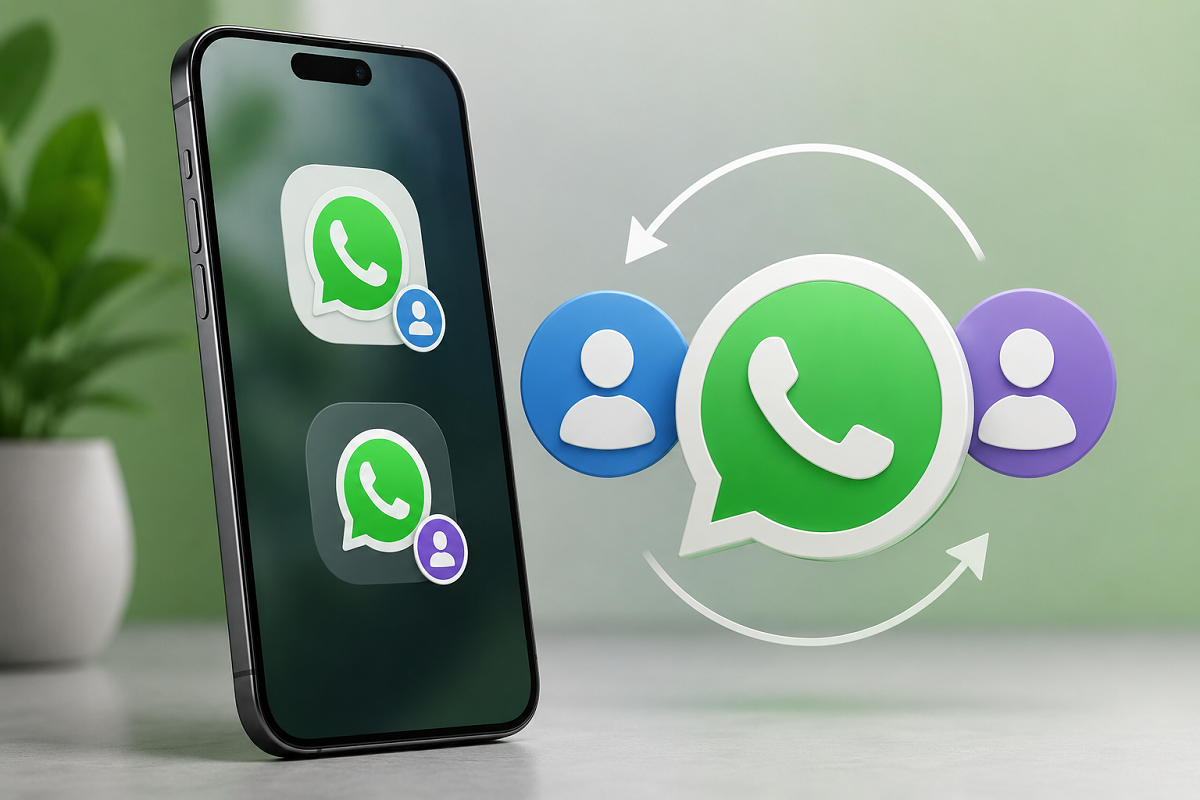
WhatsApp Multiple Accounts on iPhone: Managing separate personal and work WhatsApp numbers on an iPhone has become much easier. WhatsApp's multi-account feature allows users to keep two different WhatsApp accounts on the same iPhone and move between them without repeatedly signing out.
The feature can be particularly useful for people who maintain one mobile number for family and friends and another for professional communication. Instead of carrying two phones or depending on unofficial third-party applications, eligible iPhone users can manage both numbers inside WhatsApp.
There are a few important requirements, however. Each WhatsApp account needs its own phone number, and the second number must be available for verification. Here's how the feature works and how to set it up.
How Do Two WhatsApp Accounts Work on an iPhone?
WhatsApp's multi-account functionality allows two independently registered accounts to operate within the app on the same iPhone.
Each account is associated with a separate mobile number. Once both have been configured, users can switch between them without logging out of one account and signing into the other every time.
The account currently open is treated as the active account, while the other can remain available in the background.
WhatsApp says users can continue receiving notifications for messages and calls associated with their accounts, helping them keep track of communication without constantly switching manually.
You Need Two Different Phone Numbers
The most important requirement is a second phone number.
You cannot create two independent WhatsApp accounts using the same mobile number. Each account must be verified with its own number.
Depending on your setup, the second number could be associated with a physical SIM, an eSIM or another supported number that can receive the verification code required during registration.
Before starting, make sure you can access the second number because WhatsApp will need to verify it through its standard registration process.
How to Add a Second WhatsApp Account on iPhone
Setting up another account is relatively straightforward if the multi-account option is available on your version of WhatsApp.
Follow these steps:
- Open WhatsApp on your iPhone.
- Select Settings from the bottom of the screen.
- Look for the + icon beside your profile information.
- Tap it and select Add Account.
- Choose Agree and Continue after reviewing the applicable terms and privacy information.
- Select your country and enter the phone number you want to use for the second WhatsApp account.
- Tap Continue and complete phone-number verification using the code provided through an available verification method.
- Enter the name you want to use for the account and select Next.
- Add a profile picture and About information if you want, or complete these details later.
- Finish the setup and allow WhatsApp to register the additional account.
Once registration is complete, both WhatsApp accounts should be accessible on the same iPhone.
What If You Can't See the Add Account Option?
If Add Account does not appear in WhatsApp settings, first check whether your app is up to date.
Open Apple's App Store and check whether an update for WhatsApp is available. Install the latest version offered to your device and check the settings again.
Feature availability can sometimes vary during a rollout, so the interface may not appear identically for every user at exactly the same time.
Avoid downloading unofficial modified versions of WhatsApp or third-party apps that claim to unlock multi-account functionality. Such applications may introduce privacy, security or account-related risks.
How to Switch Between WhatsApp Accounts
Once two accounts have been added, you don't need to sign out every time you want to move from your personal account to your work account.
The account-switching controls are available through WhatsApp's account or Settings interface.
Select the account you want to use, and WhatsApp will make that account active.
This setup can make it considerably easier to maintain a separation between professional and personal conversations without requiring a second iPhone.
Each Account Can Have Separate Settings
Adding a second account doesn't mean both accounts must share exactly the same profile and privacy configuration.
The accounts function separately, allowing users to customise information and preferences for each one.
For example, your personal account could use one profile photo while your professional number uses another. You can also configure the About section and relevant notification and privacy preferences independently.
This can be particularly useful for users who want different visibility settings for work contacts and personal connections.
Don't Forget to Review Privacy Settings on Both Accounts
After setting up the second number, take a few minutes to review its privacy options.
Settings relating to profile photos, About information, status visibility, last seen, online presence and other features may need to be configured separately for the new account.
Don't assume that adding a second account automatically copies all privacy choices from the first.
You should also consider enabling available account-security features, including two-step verification, where appropriate.
Avoid Moving Accounts Between Phones Too Frequently
Repeatedly registering and transferring WhatsApp accounts between devices can trigger additional verification requirements.
For security reasons, avoid unnecessary repeated attempts to move the same number between different smartphones.
If you are changing devices permanently, follow WhatsApp's official migration or account-transfer process rather than repeatedly registering the number on different phones.
How to Remove a Secondary WhatsApp Account From Your iPhone
If you no longer need one of the accounts on that particular iPhone, you can remove it.
Before doing so, consider whether you need a backup of important conversations.
To remove the account from the device:
- Open WhatsApp.
- Go to Settings.
- Select Account.
- Choose Remove Account.
- Use the chat backup option first if you want to preserve eligible conversations before proceeding.
- Confirm the phone number associated with the account.
- Select Remove to complete the process.
Pay close attention to the wording shown on the confirmation screen so that you understand exactly what action is being performed.
Removing an Account Is Different From Deleting It
This distinction is extremely important.
Removing an account from an iPhone is not necessarily the same as permanently deleting the WhatsApp account.
Removing the secondary account disconnects it from the current device. According to the described feature behaviour, the WhatsApp account itself and associated memberships such as groups and channels can remain active.
Permanent account deletion is a different action with more significant consequences.
Therefore, users who simply want to stop accessing their second account on one iPhone should make sure they select the appropriate removal option rather than an account-deletion feature.
Back Up Important Chats Before Making Changes
Before removing or transferring an account, checking your chat backup is a sensible precaution.
If conversations, photographs, documents or other WhatsApp data are important to you, review the backup settings associated with that particular account before making changes.
Don't assume that data from both numbers is covered by the same backup configuration simply because the accounts are being used on one device.
Two WhatsApp Accounts Can Make Work-Life Separation Easier
WhatsApp's multi-account support addresses a practical problem for iPhone users who maintain more than one number.
Instead of carrying two smartphones or repeatedly logging in and out, users can keep separate personal and professional WhatsApp accounts on a single compatible iPhone.
The setup requires a unique number for each account, and both accounts can maintain their own profile and privacy preferences. Users can switch between them when required and remove the secondary account from the device later without necessarily deleting it permanently.
If the option isn't available on your iPhone, check for the latest WhatsApp update first. Most importantly, use only the official WhatsApp application and avoid unofficial third-party solutions that promise similar functionality.